
This article outlines the process required to reconcile sales in Mindbody with actual data daily. The report tracks what was recorded through the Retail screen, and it is up to the client to ensure the matches the daily EFTPOS, Ezidebit and bank account transactions.
1. What is Daily Close Report
2. Reconciling daily amounts for:
- Bank Deposit (This should be zero, unless a refund has been processed, or a corporate class paid for via bank deposit)
- Ezidebit (Ezidebit Online)
- Visa/EFTPOS (ANZ Settlement Print Out)
- Private Health (https://www.hicaps.com.au/provider-home/hicaps-accounts-online)
- Direct Debit (Direct Debit Online)
3. Closing daily data
Daily Closeout report
This report helps find discrepancies between the amount of money your system says you collected for the day, versus the amount of money that is actually in your cash register. In a nutshell, the system tells you how much cash you recorded on your Retail screen for a day (or a range of days). Then you count the cash in the drawer. If the two numbers match, then you can "Close" the data for that day and put the money in the bank. If the amounts don't match, then there was a problem with the amount of money collected from clients, the wrong payment type was selected when making the sale, or money has mysteriously disappeared. Primary and secondary revenue categories will display in the report's results if you click the "Include Subcategories" checkbox in the report's filter at the top of the screen.
Once you close out a date range, you cannot go back in and adjust it.
Report's location: Go to Reports > Sales > Administrative (from the top menu) > Daily Closeout.
You can narrow the report's results by modifying the following fields:
- View Close Data: This will show you all of the days that you've closed out in the past.
- Close Data: This button will take you to the first step of closing data. It's okay to click it. Once you do click on it, the next screen will ask you to enter how much cash you currently have in your cash register.
Before using the Daily Closeout report for the first time, we recommend closing out all past data.
- Hit the Reports tab.
- Click on Sales from the tabs on the left.
- Select Daily Closeout to open the report.
- Click Close Data.
- The first time you run this report, don't worry about entering dollar amounts on the Close Out Data screen; just click the Preview Close Amount button.
- On the next screen, enter the amount of cash that you will be starting with in the cash register in the "Amount to keep in drawer" field.
- Click the Close Out button at the bottom of the page.
- The next day, you can begin recording and closing out your data. Read How to use the Daily Closeout report on a daily basis.
Daily Basis:
- Go to Reports tab.
- Click on Sales from the tabs on the left.
- Select Daily Closeout to open the report.
- Click on the Close Data button.
- Count the cash in your register, and enter the totals in the corresponding fields. Enter the total sum amount (not quantity) for each bill and coin.
- Click the Preview Close Amounts button.
- On the next screen, you can compare the Total cash expected in drawer to the Actual cash counted in drawer.
- If you'd like to keep some cash in the register, enter that amount in the Amount to keep in drawer field, and leave that amount in the register.
- You are set to deposit the remainder.
- If there are no discrepancies, click the Close Out button at the bottom of the page.
- Repeat daily.
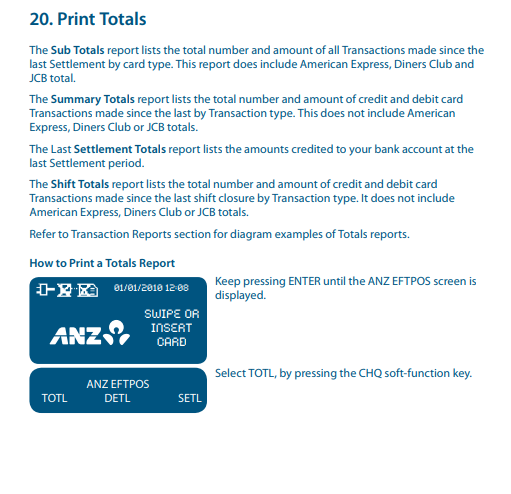
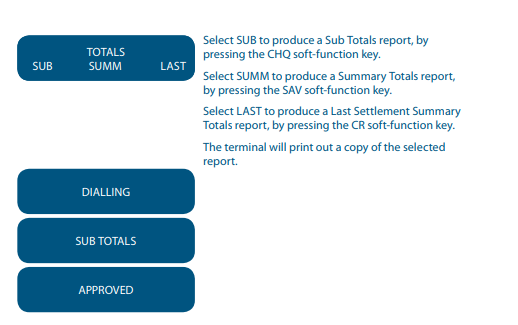
http://www.anz.com/documents/au/business/merchant/anz-pos-turbo-mobile-mog.pdf
Comments
0 comments
Please sign in to leave a comment.